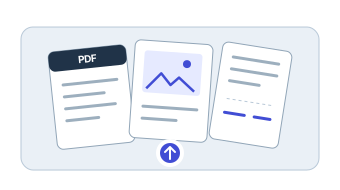
Add your files.
PDFs, images, scans, invoices, receipts, and forms. Add an MP4 when a recording helps verify the record.
PELAYAR DATA CAPTURE
Upload PDFs, images, invoices, and receipts. Choose the fields you need once, then review the captured data and export it to Excel.
FROM FILE TO ROWS
Select a captured value to highlight the place it was read from in the source document.
| Description | Qty | Unit | Total |
|---|---|---|---|
| Pallet wrap, 20 in | 12 | 18.50 | 222.00 |
| Label rolls | 40 | 6.25 | 250.00 |
| Shipping cartons | 60 | 7.10 | 426.00 |
| Packing tape | 36 | 9.25 | 333.00 |
Sample values for illustration.
HOW IT WORKS
Define what to capture, run new files through the same format, and check the result before you export.
PDFs, images, scans, invoices, receipts, and forms. Add an MP4 when a recording helps verify the record.
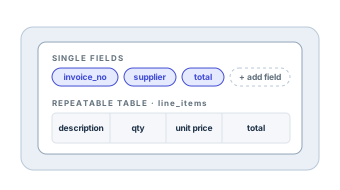
Name the single fields and repeatable tables you want, such as invoice number, supplier, and line items.
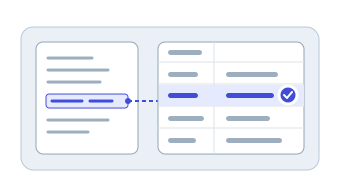
Check captured values and table rows against the source files before anything leaves the project.
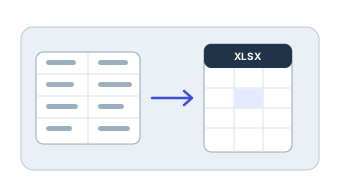
Get clean, Excel ready tables for finance, operations, reporting, or analysis.
MORE THAN OCR
OCR reads the words in a file. Data Capture organizes them into named fields, rows, and exports you can reuse.
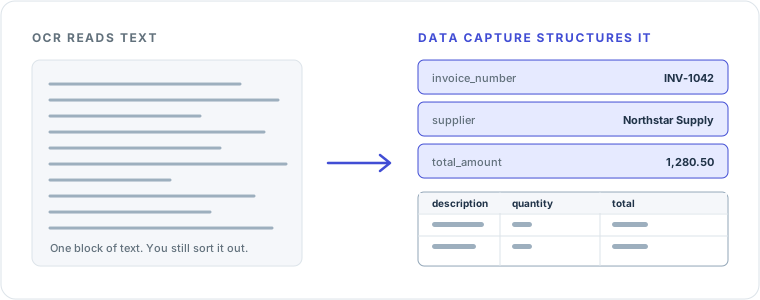
Define single value fields like dates, totals, and vendors.
Line items and product lists become rows with consistent columns.
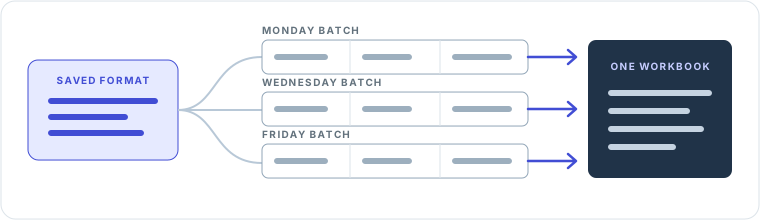
Run the next batch through the same output format without starting over.
Download Excel ready tables your team can open right away.
USE CASES
Use one project per source type, then add new files whenever the work comes back.
 INVOICES
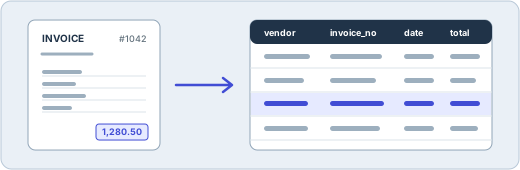
Capture vendors, invoice numbers, dates, totals, currency, tax, and line items.
Capture invoices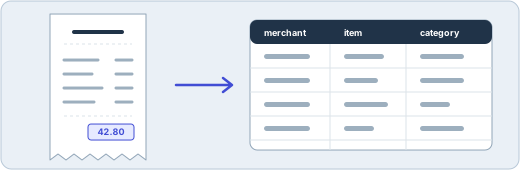 RECEIPTS
Turn receipt images, PDFs, and scans into rows you can review and total.
Capture receipts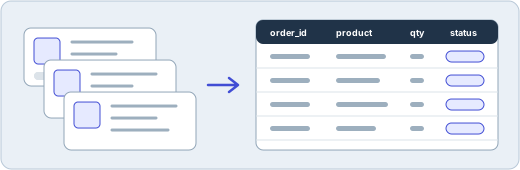 ORDERS
Bring marketplace screenshots, confirmations, and exports into one consistent format.
Capture orders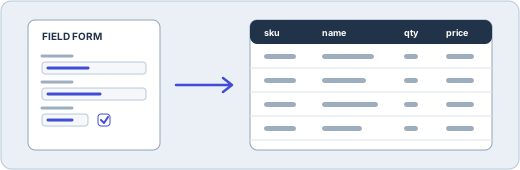 LISTS AND FORMS
Capture names, SKUs, quantities, prices, and submitted details as structured data.
Capture lists and formsCOMMON QUESTIONS
It extracts structured fields and repeatable table rows from PDFs, images, invoices, receipts, scanned documents, and forms.
Yes. OCR reads text from a file. Data Capture also organizes it into named fields, rows, and spreadsheet exports.
Yes. Define single value fields and repeatable tables before you capture, and reuse the format for new files.
Confirm the credit estimate in Data Capture before you run files. The credit guide explains how usage works.
START WITH ONE WORKFLOW
Create a project, define the output once, and turn the next batch into a clean table.